
Madrasati Homework 2026: How to Check and Submit Assignments
Homework is one of the most-used features of the Madrasati platform. Students check their assignments, solve them, and submit them through the platform. Parents monitor progress from their own accounts. Teachers create and grade assignments.
This guide explains how Madrasati homework works in 2026. You will learn how to find your assignments, submit them, check their status, and fix common problems.
Quick Answer
To check Madrasati homework: Log in to the platform at schools.madrasati.sa with your student account. Open your dashboard and look for the assignments or homework section (exact wording may vary). You will see a list of assigned homework with due dates. Open an assignment, answer the questions, and submit it before the deadline.
To submit Madrasati homework: Open the assignment, enter your answers, and send it through the platform. Save your work as you go. After submission, check the assignment list to confirm it shows as submitted — the exact status wording may vary.
What Is Madrasati Homework?
Madrasati homework refers to assignments that teachers post on the Madrasati platform for students to complete. The Madrasati platform (منصة مدرستي) is Saudi Arabia’s official online learning platform, run under the Saudi Ministry of Education. Teachers assign homework digitally. Students solve and submit it digitally. Grades and feedback appear on the platform.
Homework on Madrasati can take many forms. It may include written questions, multiple-choice quizzes, attached files, or tasks linked to lessons and virtual classes. The exact format depends on what the teacher sets up.
For general information about the platform itself, see our guide on the Madrasati platform.
How to Check Homework on Madrasati
Follow these steps to find your assigned homework.
- Open the official platform. Go to schools.madrasati.sa in your browser. This is the official Madrasati login address.
- Log in with your student account. Students sign in with their Microsoft account linked to the platform. If you have login problems, read our guide on Madrasati password recovery.
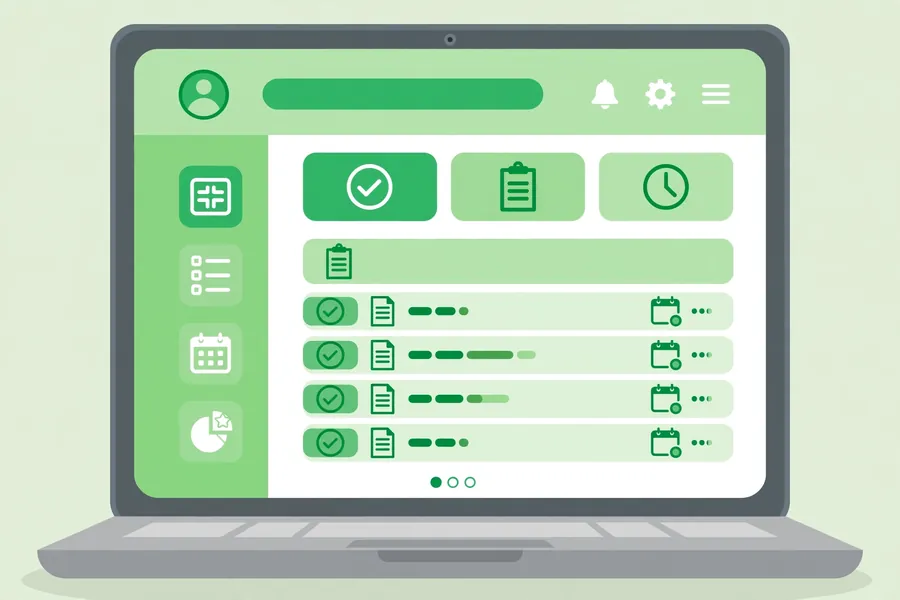
- Go to your dashboard. After login, you land on your student dashboard. This page gives you access to your courses, schedule, and assignments.
- Find the homework or assignments section. Look for a section related to assignments or homework — the exact wording on the platform may vary. This is where your teacher’s assignments appear.
- Review the list. You will see your assigned homework items, usually with the subject name, due date, and current status. Check the due dates first so you know what is urgent.
If you do not see any homework, check whether your teacher has actually assigned anything. Assignments only appear after the teacher publishes them. Also confirm you are signed in with the correct student account.
How to Open and Solve an Assignment
Once you find your homework, opening it is simple.
- Click on the assignment from your homework list.
- Read the instructions first. The teacher may include directions, attached files, or links to lesson material. Open any attachments before you start answering.
- Work through the questions. Answer each question in the space provided. Some assignments have multiple-choice questions. Others need written answers.
- Check your answers. Review what you wrote before you submit. You may not be able to edit after submission.
- Save your progress. If the assignment is long, save your work as you go so you do not lose it.
Work at your own pace. If the assignment has a time limit, the platform will show it — finish within the given window.
How to Submit Homework on Madrasati
Submission sends your answers to your teacher for grading. Follow these steps.
- Review your answers one last time. Make sure every required question is answered.
- Send the assignment. Use the submit option on the assignment page. The exact label may vary.
- Wait for confirmation. The page should confirm that your submission was received.
- Check the assignment list. Return to your homework list and confirm the assignment now shows as submitted or completed. Status wording may vary on the platform.
Do not close your browser before the submission confirms. If the page freezes during submission, see the troubleshooting table below.
How to Check Your Homework Status
After you submit, you can check what happened to your assignment.
Open your homework list again. Each assignment typically shows a status. The exact labels on the platform may vary, but you can usually tell whether an assignment is still open, already submitted, graded, or past its due date.
To see your grade on a completed assignment, check the results or grades section of the platform. For more detail on how grades work, see our guide to Madrasati grades.
If the status looks wrong — for example, it says you did not submit when you did — contact your teacher. Teachers can see submission records on their side.
Homework Deadlines and Late Submission
Each assignment comes with a deadline set by the teacher or school. The deadline shows on the assignment itself.
What happens if you submit late depends on your teacher’s settings and your school’s policy. Some teachers may still accept late work. Others may mark it down or close the assignment entirely. This behavior is configured by the teacher or school, not fixed by the platform.
To stay safe:
- Check due dates every time you log in.
- Submit early when you can.
- If you know you will be late, tell your teacher before the deadline.
- If an assignment closes, ask your teacher what to do next.
Note that some homework is only available during limited time windows. A teacher may publish an assignment that must be completed the same day. Watch for notifications or announcements from your teacher about timing.
For Parents: Monitoring Your Child’s Homework
Parents can follow their children’s homework through the platform.
Parents log in to Madrasati with their own accounts, which connect through the Noor system. From the parent dashboard, you can see your child’s schoolwork and progress.
What you can typically do as a parent:
- View assigned homework and due dates.
- See whether your child has submitted assignments.
- Follow up on grades and feedback.
Parent visibility may be limited compared to the student view. If you cannot see something you expect, ask your child’s teacher or school for help.
For Teachers: Assigning Homework on Madrasati
Teachers manage homework from their own dashboards. The typical workflow is: create an assignment, attach questions or files, set a deadline, and publish it to the class. After students submit, teachers grade the work and return feedback.
Teacher accounts and student accounts show different tools. If you are a teacher and need account help, see our Madrasati technical support guide.
Common Madrasati Homework Problems and Fixes
| Problem | Possible Cause | What to Do |
|---|---|---|
| Homework does not appear in the list | Teacher has not published it yet, or you are signed in to the wrong account | Confirm with your teacher that the assignment is published. Sign out and sign back in with the correct student account. |
| Page freezes while solving homework | Browser or connection issue | Refresh the page. Try Microsoft Edge, which teachers commonly recommend. Check your internet connection. |
| Cannot submit the assignment | Deadline passed, or the submission did not go through | Check the due date. If the deadline is open, try again and wait for confirmation. Contact your teacher if it still fails. |
| Submission not confirmed | Browser closed too early or network drop | Return to the homework list and check the status. If it is not submitted, submit again. |
| Cannot log in before doing homework | Wrong account or password issue | Use your student Microsoft account, not a parent account. See our guide on Madrasati password recovery. |
| Attachment will not open | File format or browser issue | Try a different browser. Download the file instead of opening it in the browser. |
| Shared family laptop shows the wrong student’s work | Browser caching between accounts | Sign out fully. Clear cached data or use a separate browser profile for each student. |
| No notification about new homework | Platform notification settings or missed announcement | Check the homework list directly each day. Ask your teacher how they announce new assignments — many use WhatsApp or class groups. |
| Assignment closed before the deadline you expected | Limited time window set by the teacher | Contact your teacher immediately to ask about reopening it. |
| Wrong grade or missing feedback | Grading still in progress or an error | Wait a day or two, then ask your teacher directly. |
If a technical problem persists, the Madrasati technical support guide covers general fixes and where to get official help.
Frequently Asked Questions
How do I check my homework on Madrasati?
Log in to schools.madrasati.sa with your student account. Open your dashboard and look for the assignments or homework section — wording may vary. Your assigned homework appears there with due dates.
How do I submit homework on Madrasati?
Open the assignment, enter your answers, and use the submit option on the assignment page. Wait for confirmation, then check the homework list to make sure the status changed to submitted.
Why is my homework not showing on Madrasati?
The most common reasons: the teacher has not published it yet, or you are signed in with the wrong account. Confirm with your teacher that the assignment exists, then sign in with the correct student account.
How do I know if my homework was submitted?
Return to the homework list after submitting. The assignment should show a submitted or completed status. The exact wording may vary. If the status looks wrong, ask your teacher to check on their side.
Can parents check homework on Madrasati?
Yes. Parents log in with their own accounts through the Noor system and can view their child’s assigned homework, submission status, and progress from the parent dashboard.
What happens if I submit Madrasati homework late?
It depends on your teacher’s settings and your school’s policy. Late work may be accepted, marked down, or blocked entirely. This is configured by the teacher or school, not fixed by the platform. Ask your teacher if you missed a deadline.
Can I do Madrasati homework on my phone?
The platform works through a web browser, so you can access it on a phone’s browser. For long assignments, a computer is more comfortable. Make sure your connection is stable before submitting.
How do teachers assign homework on Madrasati?
Teachers create assignments from their own dashboards: they add questions or files, set a deadline, and publish the assignment to the class. Students then see it in their homework list. Teacher-side steps may change with platform updates, so teachers should follow current official guidance from the Ministry of Education.
Conclusion
Madrasati homework is simple once you know where to look: log in, open the assignments section, solve the tasks, and submit before the deadline. Always confirm your submission went through. If something goes wrong — missing homework, a frozen page, or a failed submission — the fixes in the table above cover the most common cases. Parents can monitor from their own accounts, and teachers manage everything from the teacher dashboard.
For related tasks, see our guides on Madrasati grades, Madrasati exams, and Madrasati password recovery.